

Prairie View A&M University uses the Canvas Learning Management System, commonly referred to as eCourses.
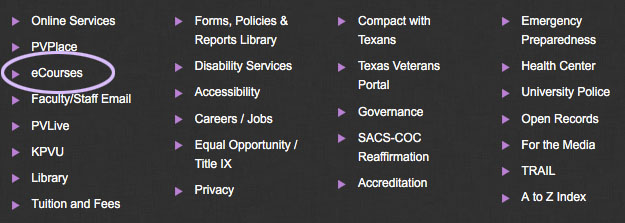
There are 3 ways to access eCourses:
1. Link at the bottom of every page on the PV website (shown in image below)
2. Link in the top right corner of page in PV Place 
3. Type https://ecourses.pvamu.edu in browser address bar.
Logging Into eCourses
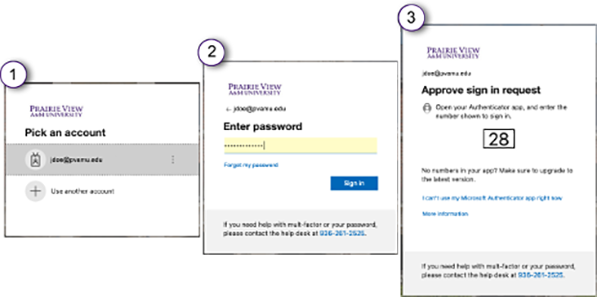
eCourses uses the university Single Sign-On procedure (steps shown in image below).
eCourses Dashboard
Once logged in, the Dashboard displays. The Dashboard has 2 views: the Card View and List View:
Card View

Note: The Card View is ideal for laptop monitors, desktop monitors, and larger tablets.
List View

Note: The List View works better for devices with smaller screens like small tablets and cell phones.
Canvas Menus
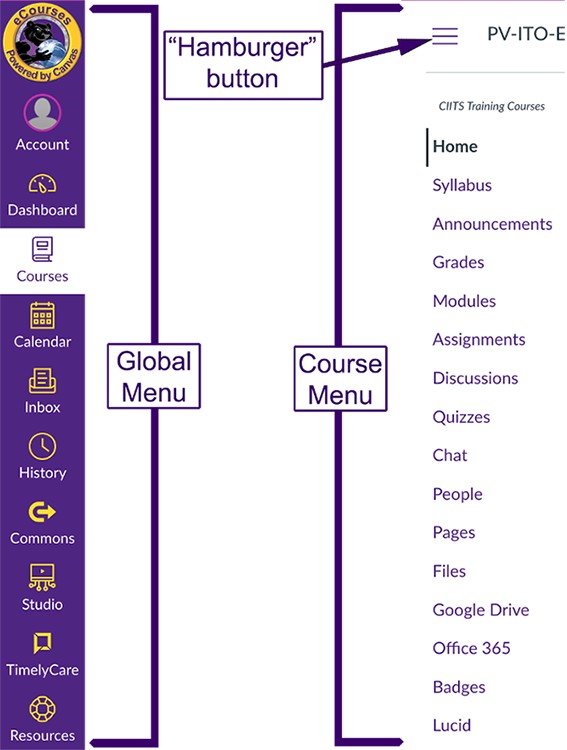
Canvas has two primary menus, the Global Navigation Menu (or simply Global Menu) and Course Navigation Menu (or Course Menu). Both are displayed below:
-
The Global Navigation Menu is located on the left side of every page in Canvas. Global Navigation links provide quick access to frequently used Canvas features.
-
The Course Navigation Menu is a series of links on the left side of every page within a course, and just to the right of Global Menu, that help students access different course areas. The Course Navigation Menu is always visible on its respective pages, but it can be collapsed by clicking the “hamburger button” indicated in the screen shot above.
-
Note: Some pages automatically collapse the Course Menu upon loading, but the hamburger button can bring it back.
-
Resources for Technical Support
1. For assistance with eCourses password reset and login issues – Contact CITE
-
https://mypassword.pvamu.edu/
-
Link on the PV Place web page (as shown in image below)
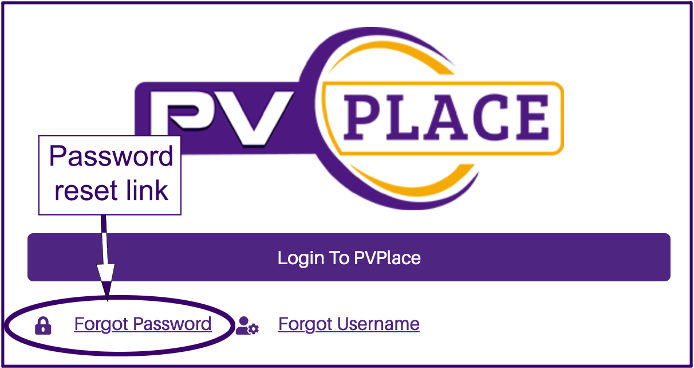
-
Helpdesk: webservices@pvamu.edu / 936-261-2525
2. Contacts and Resources for eCourses issues – Contact CIITS
-
936-261-3283
-
ciits@pvamu.edu
-
Resources button in Canvas Menu
3. Contacts and Resources for technology issues not related to eCourses
-
936-261-2525
-
servicedesk@pvamu.edu
-
https://www.pvamu.edu/helpdesk
Missing Courses on Your Dashboard?
If one or more of your courses are not visible on your dashboard, they may not have been published yet. Instructors may be updating their courses before publishing them closer to the first day of class. If any of your courses are missing, please follow these steps:
1. See if the course has been published. To find out if your course has been published:
-
Go to the “All Courses” page and view the “Published” column. For instructions, go to the My Classes are Missing in eCourses! page on the CIITS HelpDocs site.
-
If the course has “No” in the Published column, contact your instructor to ask when the course will be published.
-
If you don’t see the course on the “All Courses” page, go to step 2 below.
2. Check PantherTracks to confirm your enrollment in the course. If you are enrolled, Check the start date.
-
For 16-week courses or Term A courses that start at the beginning of the semester: If it’s been confirmed that the course is published in Canvas, but you still can’t see it, contact CIITS at ciits@pvamu.edu or 936-261-3283.
-
For Term B courses that start after Mid Terms: Look for the course to appear on your dashboard 10 days before the first class day.
-
If you are not enrolled in PantherTracks: Contact your academic advisor and the Office of the Registrar.